Introduction
Managing multiple Google Ads campaigns through a web browser can become time-consuming, especially as your business grows. Whether you manage hundreds of keywords, dozens of campaigns, or multiple client accounts, making changes one by one can slow down your workflow.
This is where Google Ads Editor becomes an essential tool.
This tool is a free desktop application that allows advertisers to download, edit, and upload Google Ads campaigns in bulk. It is designed to save time, reduce manual work, and improve campaign management for businesses, agencies, and marketing professionals.
In this guide, you’ll learn what this tool is, its key benefits, top features, how to use it, and best practices for managing campaigns efficiently in 2026.
What Is Google Ads Editor?
Quick Answer: It is Google’s free desktop application that allows advertisers to manage campaigns offline, perform bulk edits, copy campaigns, and upload multiple changes at once.
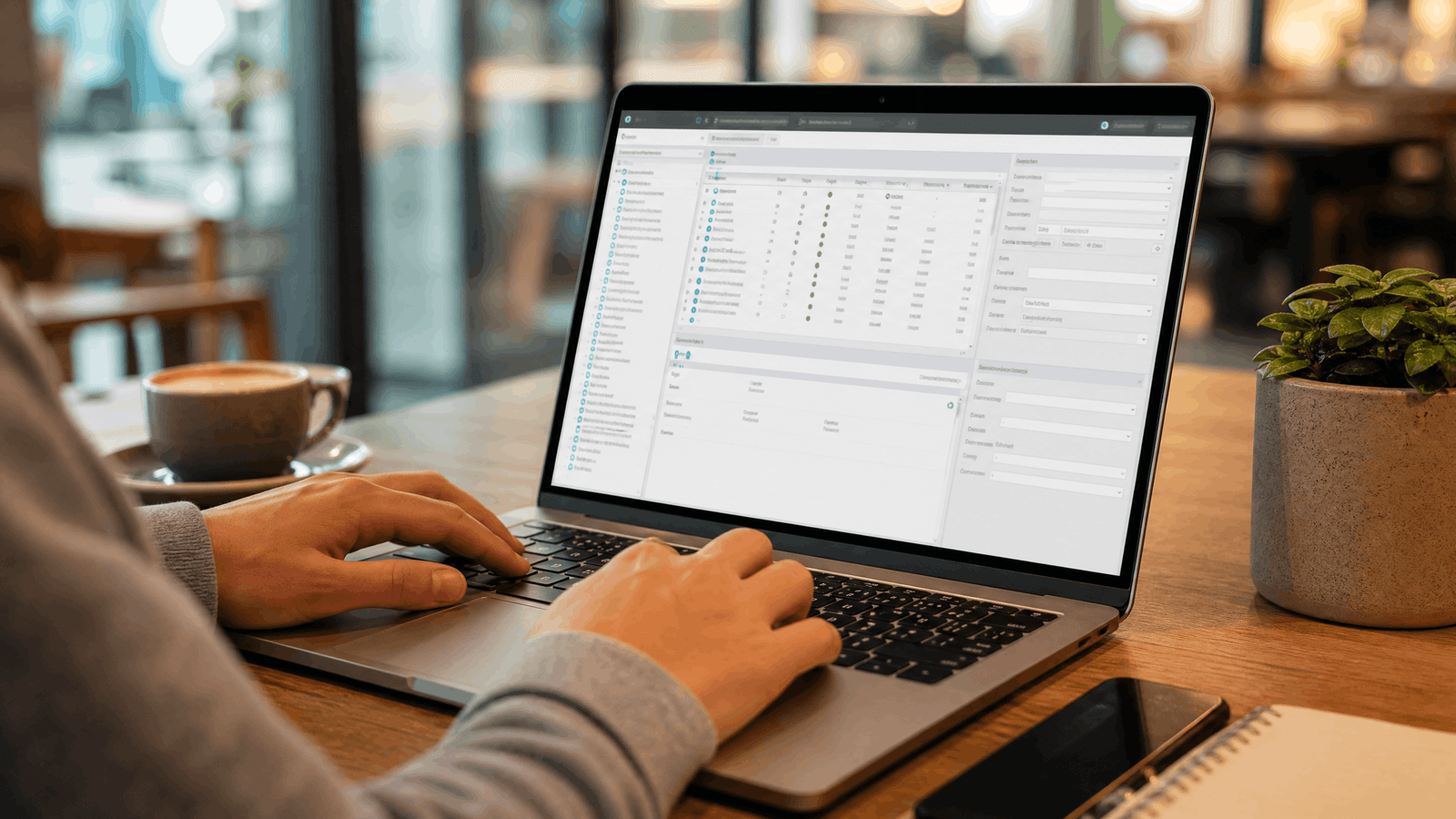
Unlike the standard Google Ads dashboard, This tool downloads your account to your computer, allowing you to work even without an internet connection. Once you’ve finished making changes, you simply upload them back to your Google Ads account.
This makes it particularly valuable for:
- Business owners managing several campaigns
- Marketing agencies handling multiple accounts
- PPC specialists
- Ecommerce businesses
- Franchise businesses
- Large advertisers
Why Business Owners Should Use Google Ads Editor
Quick Answer: It helps business owners save time, reduce errors, and manage campaigns more efficiently.
Many businesses eventually reach a point where updating ads manually becomes inefficient. Imagine needing to change a phone number across 120 ads or updating promotional text in dozens of campaigns.
Instead of editing each ad individually, This tool lets you update everything in minutes.
This leads to:
- Faster campaign management
- Better consistency
- Fewer mistakes
- Higher productivity
- Easier account organization
For growing businesses, these time savings translate directly into improved operational efficiency.
Key Benefits of Google Ads Editor
Quick Answer: It improves productivity through bulk editing, offline access, advanced search, and faster campaign management.
1. Bulk Editing
One of the biggest advantages is making hundreds of changes simultaneously.
Examples include:
- Updating headlines
- Editing descriptions
- Changing URLs
- Adjusting bids
- Pausing campaigns
- Updating keywords
Instead of repeating the same task multiple times, one edit can update every selected item.
2. Offline Campaign Management
Internet interruptions no longer stop your workflow.
You can:
- Download campaigns
- Work offline
- Review changes carefully
- Upload when ready
This is especially useful for agencies working remotely or while traveling.
3. Copy Campaigns Quickly
Need similar campaigns for another location or product?
Simply copy:
- Campaigns
- Ad groups
- Keywords
- Ads
- Extensions
- Audiences
This dramatically reduces setup time.
4. Save Hours of Manual Work
Businesses running multiple campaigns often spend several hours each week making repetitive updates.
Google Ads Editor automates much of this process, allowing your team to focus on strategy instead of repetitive tasks.
5. Better Error Detection
Before publishing, the tool highlights issues such as:
- Missing headlines
- Invalid URLs
- Duplicate keywords
- Policy warnings
- Budget conflicts
This reduces costly publishing mistakes.

Top Features of Google Ads Editor
Quick Answer: Google Ads Editor offers powerful features that simplify campaign management and improve efficiency.
Advanced Search and Filtering
Quickly locate:
- Specific campaigns
- Keywords
- Ads
- Locations
- Labels
- Audiences
This saves significant time in large accounts.
Bulk Find and Replace
Need to replace “2025” with “2026” across hundreds of ads?
The Find and Replace tool completes the task in seconds.
Import from Excel or CSV
Many advertisers prepare campaigns in spreadsheets.
This tool lets you import:
- Keywords
- Ads
- Campaigns
- Product groups
This makes campaign creation much faster.
Draft Changes Before Publishing
Every modification remains local until uploaded.
This gives you time to:
- Review
- Test
- Verify
- Correct mistakes
before they go live.
Multi-Account Management
Agencies can manage multiple Google Ads accounts from one application without constantly switching browser tabs.
How Google Ads Editor Works
Quick Answer: Download your account, make edits locally, review changes, and upload them when ready.
The workflow is simple:
- Install Google Ads Editor.
- Sign in using your Google account.
- Download your campaigns.
- Make edits offline.
- Review changes.
- Upload approved changes.
This workflow reduces the risk of accidental edits and improves efficiency.
How to Use Google Ads Editor
Step 1: Download it
Download the application from Google’s official website and install it on your computer.
Step 2: Add Your Google Ads Account
Sign in securely and download your account data.
Step 3: Navigate Campaigns
The left panel displays:
- Campaigns
- Ad Groups
- Keywords
- Ads
- Assets
- Audiences
Step 4: Make Bulk Changes
Examples include:
- Increase bids by 10%
- Pause seasonal campaigns
- Replace promotional text
- Update landing pages
- Add negative keywords
Step 5: Check Errors
Always review:
- Policy issues
- Broken URLs
- Duplicate entries
- Missing assets
Step 6: Upload Changes
Once satisfied, upload all approved edits.
Google Ads will process and review your updates before they become active.
Best Practices for Google Ads Editor
Quick Answer: Use structured workflows, review every upload, and keep campaigns organized for better results.
Follow these best practices:
- Download fresh account data before editing.
- Label campaigns for easier organization.
- Review changes before uploading.
- Keep naming conventions consistent.
- Use bulk edits carefully.
- Test changes on smaller campaigns first.
- Maintain backup exports for important accounts.
- Organize campaigns by products or services.
- Review policy alerts before publishing.
- Schedule regular account maintenance.
Common Mistakes to Avoid
Many advertisers unintentionally create problems by:
- Uploading outdated account data.
- Ignoring policy warnings.
- Making bulk edits without reviewing changes.
- Replacing text incorrectly.
- Forgetting to sync account updates.
- Publishing duplicate keywords.
- Accidentally editing paused campaigns.
Avoiding these mistakes helps maintain campaign performance.
Google Ads Editor vs Google Ads Web Interface
Feature | Google Ads Editor | Google Ads Web |
Offline Editing | ✅ | ❌ |
Bulk Editing | ✅ Excellent | Limited |
Multi-Account Management | ✅ | Limited |
Spreadsheet Imports | ✅ | Basic |
Large Campaign Management | Excellent | Moderate |
Real-Time Reporting | ❌ | ✅ |
Campaign Analysis | Limited | Excellent |
Both tools complement each other. Many advertisers use Google Ads Editor for campaign management and the web interface for reporting and optimization
Is This tool Worth Using?
Quick Answer: Yes. Google Ads Editor is one of the best free tools for advertisers managing multiple campaigns or making frequent updates.
It is especially beneficial if you:
- Manage several campaigns
- Run seasonal promotions
- Operate multiple business locations
- Handle large keyword lists
- Work with an agency
- Need faster bulk edits
For small accounts with only a few campaigns, the standard Google Ads interface may be sufficient. However, as your advertising grows, Google Ads Editor becomes an invaluable productivity tool.
Frequently Ask Questions
Do changes made in Google Ads Editor go live immediately?
No. Changes remain saved locally on your computer until you click Post or Upload. This gives you time to review edits, fix errors, and ensure everything is correct before publishing them to your Google Ads account.
Can Google Ads Editor help reduce mistakes in large advertising accounts?
Yes. Google Ads Editor includes built-in validation tools that identify issues such as broken URLs, missing ad assets, duplicate keywords, and policy warnings before you upload changes, helping reduce costly mistakes.
Does Google Ads Editor support Performance Max campaigns?
Yes. Google Ads Editor supports many Performance Max campaign settings, allowing advertisers to manage campaign elements more efficiently. However, some newer features may still require the Google Ads web interface.
Can multiple team members use Google Ads Editor?
Yes. Multiple users can work on the same Google Ads account, but it’s important to download the latest account changes before editing. This helps prevent version conflicts and accidental overwriting of recent updates.
Is Google Ads Editor suitable for small businesses?
Absolutely. Even if you manage only a few campaigns, Google Ads Editor can simplify campaign updates, organize your account, and prepare you for future growth as your advertising efforts expand.
How often should I update Google Ads Editor?
Google recommends using the latest version of Google Ads Editor whenever updates become available. Regular updates ensure compatibility with new Google Ads features, campaign types, and policy changes.
Can I schedule ads using Google Ads Editor?
Yes. Google Ads Editor allows you to create and edit ad schedules, making it easier to control when your ads appear based on your business hours or customer activity.
Does Google Ads Editor work for Google Shopping campaigns?
Yes. Google Ads Editor supports Shopping campaigns, allowing advertisers to edit product groups, bids, campaign settings, and other campaign elements more efficiently than making individual changes online.
What should I do before uploading changes in Google Ads Editor?
Before uploading, review all pending edits, check for policy warnings, verify destination URLs, confirm bid adjustments, and ensure your account data is up to date. This helps prevent publishing errors and keeps campaigns running smoothly.
Should I use Google Ads Editor instead of the Google Ads website?
The best approach is to use both. Google Ads Editor is ideal for bulk editing and campaign management, while the Google Ads web interface provides detailed reporting, audience insights, conversion tracking, and performance analysis.
Conclusion
Businesses that invest in Google Ads management services can use This tool to make bulk campaign updates, improve workflow efficiency, and reduce manual work.. With features like bulk editing, offline access, spreadsheet imports, advanced search, and multi-account management, it significantly reduces the time required to maintain large advertising accounts.
For business owners, adopting this tool means spending less time on repetitive tasks and more time focusing on growth and strategy. When combined with ongoing optimization and performance analysis, it can help streamline your advertising workflow and improve overall campaign management.
If you’re looking to maximize the return on your Google Ads investment, consider partnering with Reputical. Our team helps businesses create, manage, and optimize high-performing PPC campaigns that drive qualified traffic and measurable results.